
Beat Bump
Your stage as a drum machine: sequence panel bumps and export Resolume-ready loops.
Your stage as a drum machine: sequence panel bumps and export Resolume-ready loops.
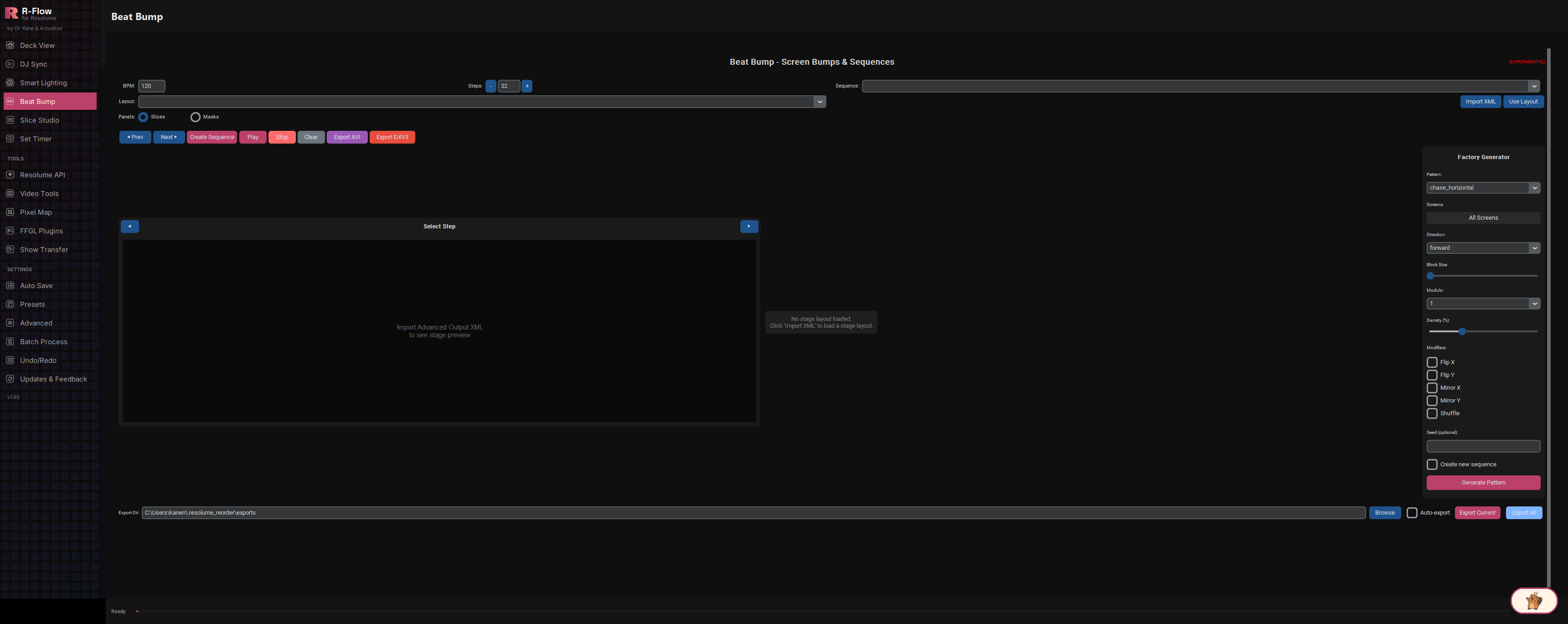
Beat Bump turns your real stage layout into a step sequencer. Import your Advanced Output setup from Resolume and every screen and slice becomes a row in a drum-machine-style grid. Click cells (or click panels right on the live stage preview) to program which panels flash on each beat step. Preview the sequence in time with your BPM, or let the Factory Generator build chases, rows, columns, spirals and random patterns for you. When it looks right, export a beat-locked loop as a DXV3-ready MOV you can drag straight into Resolume.
Import your Resolume Advanced Output XML and Beat Bump lays out a grid where every row is one of your real screens and slices. Program up to 1024 steps per sequence, paged 32 steps at a time with Prev/Next.
A live canvas draws your stage exactly as mapped, including rotated and warped slices, with per-step highlighting. Pick a step, then click panels directly on the preview to toggle them on or off for that beat.
Auto-build horizontal and vertical chases, full rows and columns, spirals, checkerboards, stripes, and random or density-based patterns. It auto-detects the row/column structure of your rig so chases follow the physical layout.
Left-drag to paint or erase runs of cells, right-drag a box to fill or clear whole regions at once, and Ctrl-drag to copy an entire step column across the timeline (hold Shift to merge instead of replace).
Hit Play and the sequence cycles through your steps at the set BPM (one full pass equals one 4-beat bar), with the active step highlighted in both the grid and the stage preview.
Export DXV3 renders your sequence as a MOV in the HAP codec (which Resolume plays natively, labelled DXV3 in-app) using the bundled FFmpeg. Drag the file straight into your deck. Export AVI also offers AVI, MP4 or MOV output at 60 fps.
Keep multiple named sequences, export any one (or all of them at once, with an index) as JSON files, and enable Auto-export to snapshot every edit to your chosen export folder as you work.
In Resolume Arena, open Advanced Output and save your screen setup as a preset. R-Flow looks for these XML files in the standard Documents > Resolume Arena > Presets > Advanced Output folder (including the OneDrive variant), and remembers the last folder you used during the session.
On the Beat Bump app, choose how panels should be read using the Panels option: Slices uses your slice mapping, Masks expands mask/warper grids into individual panels (ideal for LED panel walls). Then click Import XML and pick your Advanced Output file. A confirmation shows how many screens were found; click Use Layout to load it into the sequence grid and stage preview.
Set your BPM, dial in the number of Steps with the + and - buttons (1 to 1024), type a name into the Sequence box, and click Create Sequence.

Use the arrow buttons above the preview to select a step (the label shows which step you are on), then click panels on the stage preview to light them for that beat. Or work in the grid on the right: click cells to toggle, left-drag to paint, right-drag a box to fill or clear a region, Ctrl-drag to copy one step's column to others. Use Prev / Next to page through sequences longer than 32 steps.
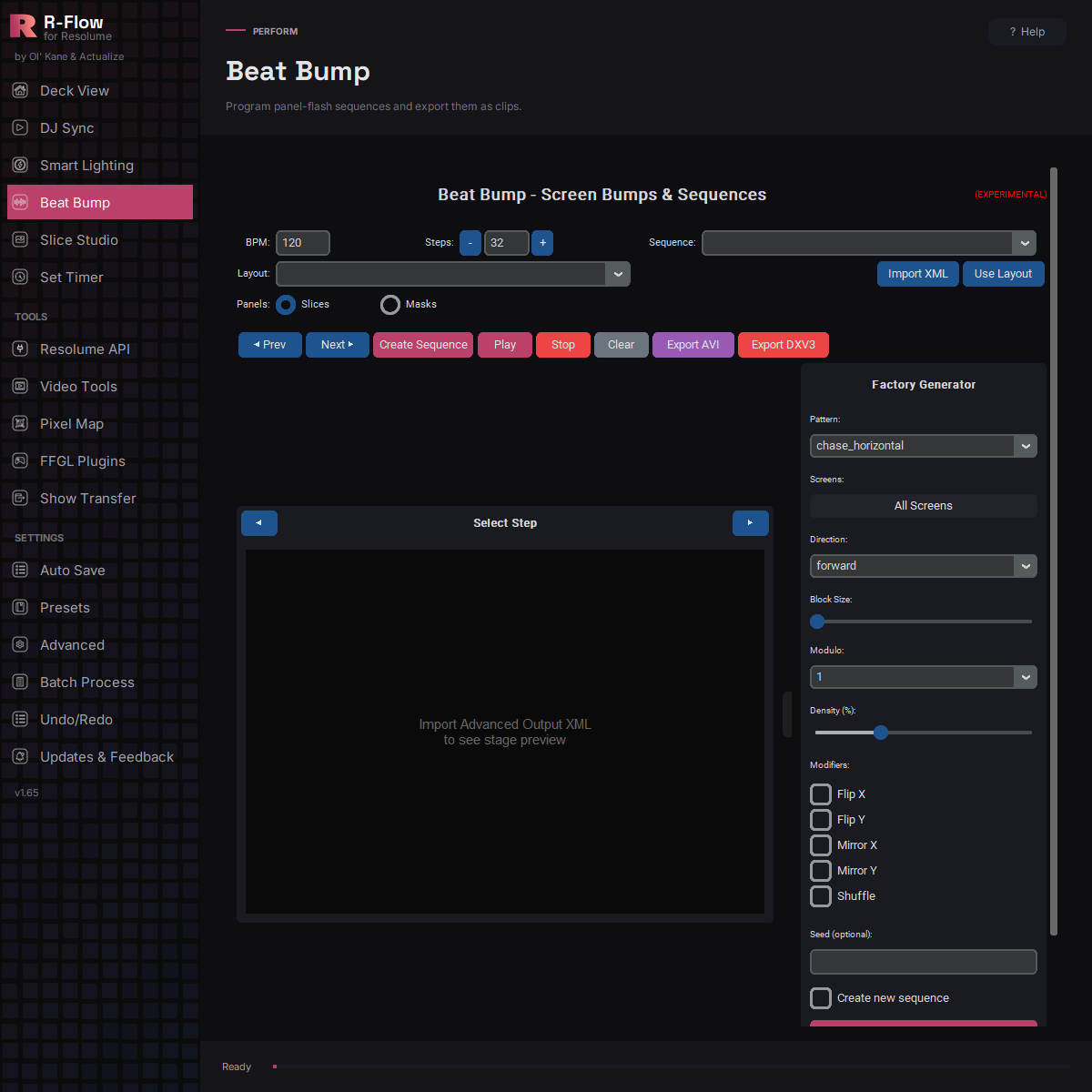
In the Factory Generator panel, pick a Pattern (chase, row, column, spiral, random, density, checker, stripes), choose which Screens to target, set Direction (forward, reverse, or ping-pong), Block Size, Modulo, and Density. Add modifiers like Flip, Mirror, or Shuffle, optionally enter a Seed for repeatable randomness, and click Generate Pattern. Tick Create new sequence to keep your current one untouched.
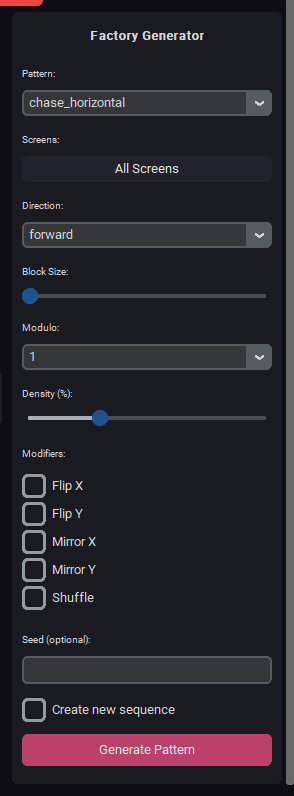
Click Play to run the sequence at your BPM. The grid and stage preview highlight each step as it fires. Click Stop when you are done, or Clear to wipe the pattern and start over.

Click Export DXV3 to render a MOV in Resolume's native codec and drag it straight into your composition, or Export AVI for a standard AVI/MP4/MOV file. A progress window shows while rendering. You can also set an Export Dir and use Export Current or Export All to save sequences as JSON project files, with Auto-export saving on every edit.

| BPM | The tempo for playback preview and export timing. One full pass through all steps equals one 4-beat bar at this BPM. |
|---|---|
| Steps | How many steps in the sequence, from 1 to 1024. Changing it on an existing sequence keeps the pattern you have already programmed. |
| Sequence | Name a new sequence or pick an existing one from the dropdown to edit, play, or export. |
| Layout | Which imported stage layout the sequencer and preview are built from. |
| Panels: Slices / Masks | Slices reads your slice mapping from the XML; Masks reads mask layers and expands warper grids into individual panels. |
| Pattern (Factory Generator) | The algorithm used: chase horizontal, chase vertical, row, column, random, density, checker, stripes, or spiral. |
| Screens | Limits pattern generation to the screens you tick in the selection dialog. Defaults to All Screens. |
| Direction | Forward, reverse, or ping-pong. Ping-pong plays forward then backward and doubles the step count. |
| Block Size | How many panels light at once in chase and spiral patterns (1 to 16). |
| Modulo | Light panels only every Nth step (1, 2, 3, 4, or 8). The in-between steps stay dark, giving a gated half-time or quarter-time feel. |
| Density (%) | How full random, density, and stripes patterns are: the percentage of panels active per step. |
| Modifiers | Mirror X / Mirror Y duplicate the pattern symmetrically across the stage, Shuffle randomizes step order. (Flip X / Flip Y are placeholders for a future spatial flip.) |
| Seed (optional) | Enter any number or word to make random patterns repeatable. The same seed regenerates the exact same pattern. |
| Create new sequence | When ticked, Generate Pattern writes into a fresh timestamped sequence instead of overwriting the current one. |
| Export Dir / Auto-export | Where JSON sequence files are saved. With Auto-export on, every edit is saved to that folder automatically. |