
DJ Sync
Your decks drive the visuals: beat-locked BPM, auto clip triggers, no extra hardware.
Your decks drive the visuals: beat-locked BPM, auto clip triggers, no extra hardware.
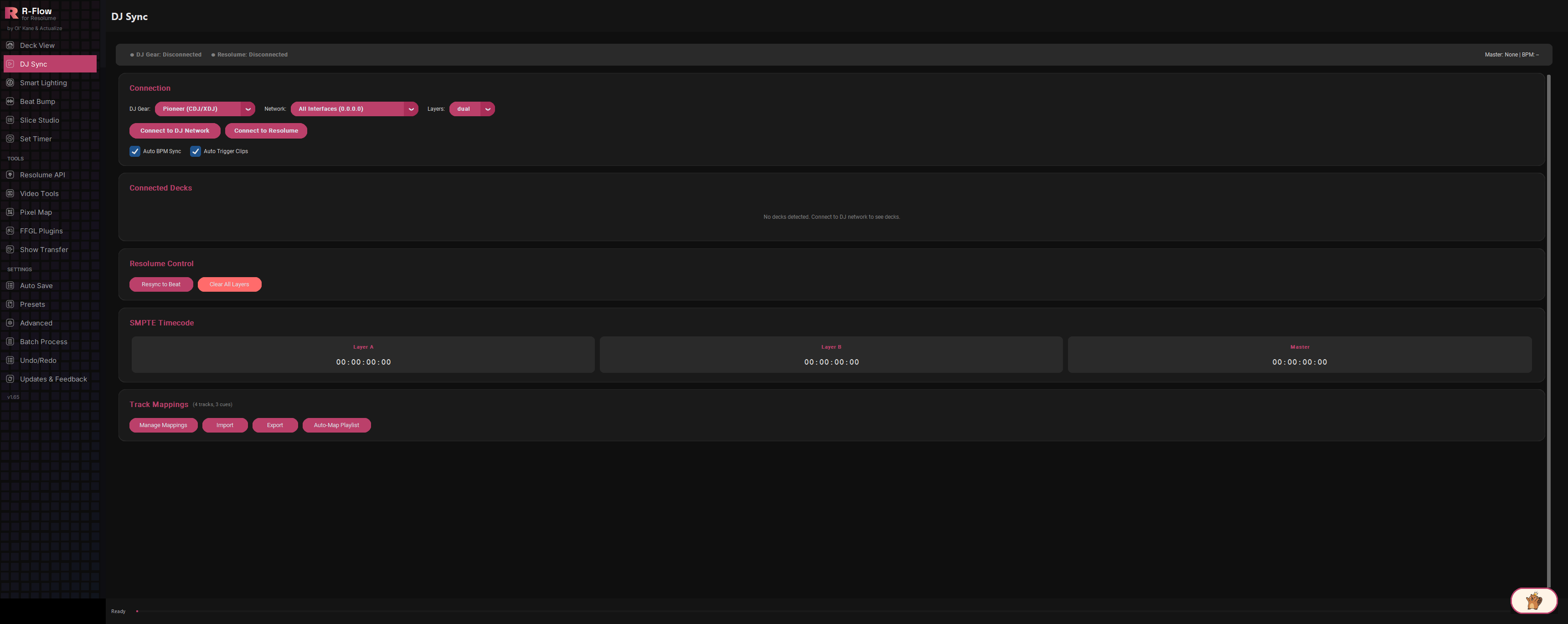
DJ Sync listens to the same network your DJ gear already talks on (Pioneer Pro DJ Link for CDJ/XDJ players, or Denon StagelinQ for SC5000/SC6000 Prime players) and turns what the DJ is doing into Resolume commands in real time. Live deck BPM continuously drives Resolume's composition tempo, and when the DJ loads a track you've mapped, R-Flow fires the matching clip automatically and seeks it to the exact position in the song. Add timed cue points so extra clips fire at specific moments in a track, and a built-in drift watcher re-seeks the visuals whenever the DJ scratches or jumps, keeping picture and music locked together.
Switch between Pioneer (CDJ/XDJ) via Pro DJ Link and Denon (SC5000/SC6000) via StagelinQ with a single dropdown. Deck discovery is automatic once you connect to the DJ network.
With Auto BPM Sync on, deck tempo is pushed straight into Resolume's composition BPM the moment it changes, so beat-reactive effects always run at the DJ's actual tempo.
Map any track to a default layer and clip. When that track loads on a deck, R-Flow triggers the clip and seeks it to match how far into the song the DJ already is.
Attach extra clip launches to specific timestamps in a track. For example, fire a drop visual at 32 seconds in. Cues re-arm automatically if the DJ restarts the track from the top.
R-Flow constantly compares where the song is against where the clip is. If they drift apart by more than a quarter second (a scratch, a loop, a hot-cue jump), the clip is re-seeked instantly, up to 20 times per second.
Every detected deck gets a card showing artist, title, position, BPM, play/pause state, and which deck is master. Denon players even show their configured deck colours.
Bulk-create track mappings straight from your rekordbox library, or import an exported playlist (XML or TXT) if your database is encrypted. All mappings persist in a local database so they survive restarts, and can be exported and imported as files for backup or moving between machines.
Layer A, Layer B, and Master timecode displays run live from deck positions, and the master deck's timecode and position are streamed to Resolume's timeline while it plays.
In the Connection panel, set the DJ Gear dropdown to either "Pioneer (CDJ/XDJ)" or "Denon (SC5000/SC6000)".

For Denon players, use the Network dropdown to pick the adapter that's plugged into the same network as your players. "All Interfaces" works in most simple setups, and Pioneer listening always uses every adapter regardless. For Denon, also set the Layers dropdown: "dual" tracks both layers of a player, "single" tracks only the first.
Click the connect button, which reads "Connect to Pioneer" or "Connect to Denon" once you've picked your gear. The status light at the top switches to "Searching…" and then to "Connected" the moment the first deck reports in. Deck cards appear in the Connected Decks panel as players are found. (The gear and network dropdowns lock while connected; hit Disconnect to change them.)
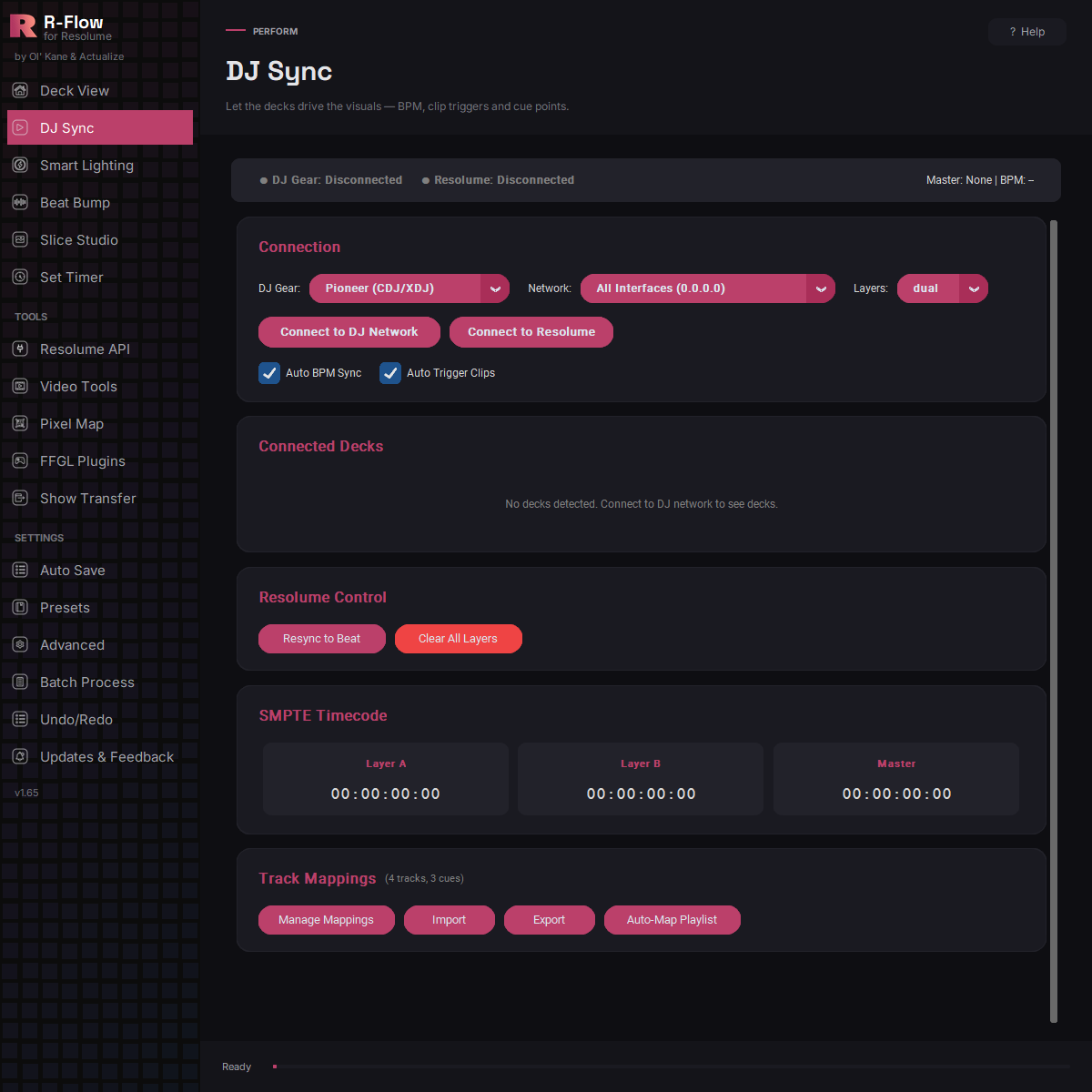
Click "Connect to Resolume". The status bar shows "OSC Ready" with the address it's sending to (port 7000 on the same computer). Make sure OSC input is enabled in Resolume's preferences on port 7000, with Resolume running on the same machine as R-Flow.

Load a track on a deck, then click "+ Map to Clip" on its deck card. In the Map Track to Clip dialog, enter the default Layer and Clip numbers, optionally add an extra clip at a specific time ("At sec" plus its Layer and Clip), and hit Save. If the deck is already playing that track, the clip fires immediately. Once mapped, the button changes to "Show Mapping".

In the Track Mappings panel, use "Auto-Map Playlist" to generate mappings from a rekordbox playlist, "Manage Mappings" to open the full editor, and "Import" / "Export" to save or load mapping files.

Keep "Auto BPM Sync" and "Auto Trigger Clips" checked (both are on by default). From here, every track load triggers its mapped clip at the right position, cue points fire on schedule, and Resolume's tempo follows the decks.

"Resync to Beat" snaps Resolume's beat phase back in line; "Clear All Layers" blacks out layers 1 through 8 in one click.

| DJ Gear | Selects the ecosystem to listen to: Pioneer (CDJ/XDJ) over Pro DJ Link, or Denon (SC5000/SC6000) over StagelinQ. |
|---|---|
| Network | Denon only: which adapter's network to accept StagelinQ players from (Pioneer always listens on all interfaces). Defaults to All Interfaces; pick a specific adapter if you're on multiple networks. |
| Layers | Denon only: "dual" follows both layers (A and B) of a Prime player as separate decks; "single" follows only layer A. |
| Auto BPM Sync | On by default. Continuously pushes live deck BPM into Resolume's composition tempo as decks report in. |
| Auto Trigger Clips | On by default. Fires the mapped clip (and seeks it to the current song position) whenever a mapped track loads on a deck. |