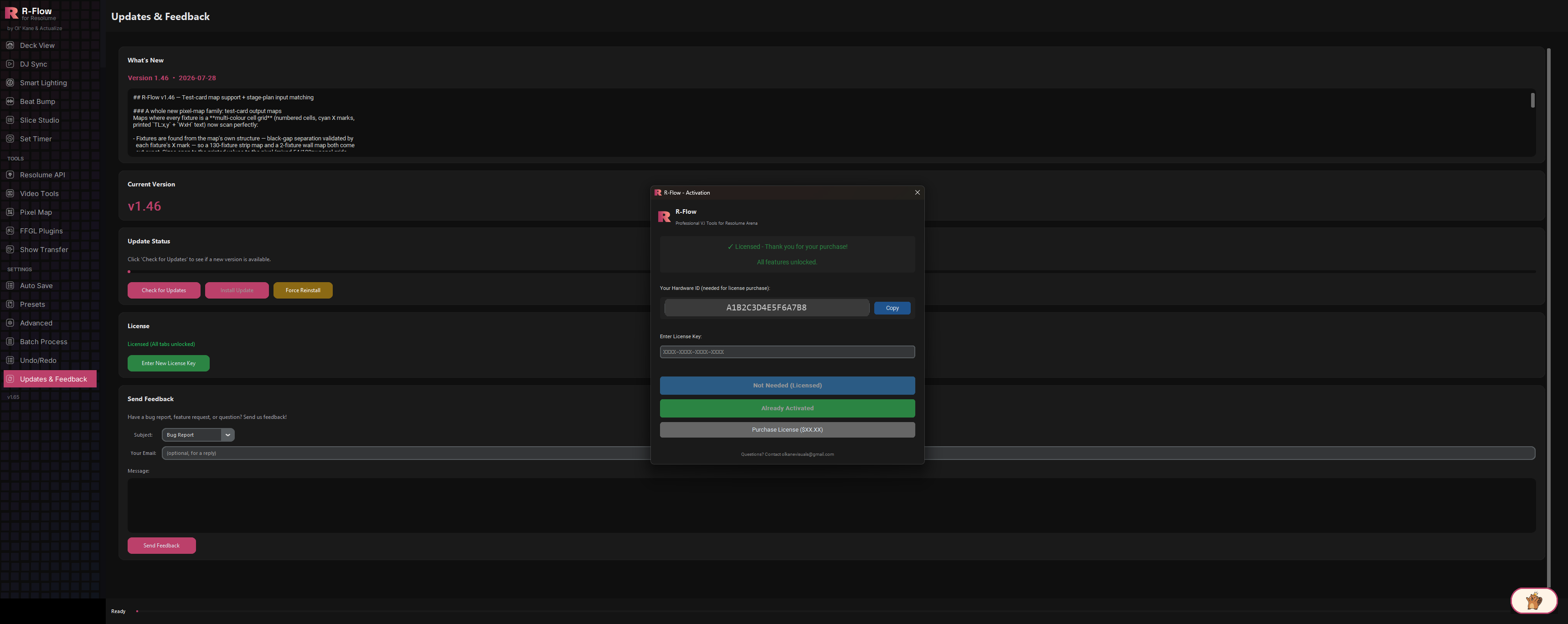
Updates & Feedback
One-click updates, sign-in licensing, and a direct line to the developer.
One-click updates, sign-in licensing, and a direct line to the developer.
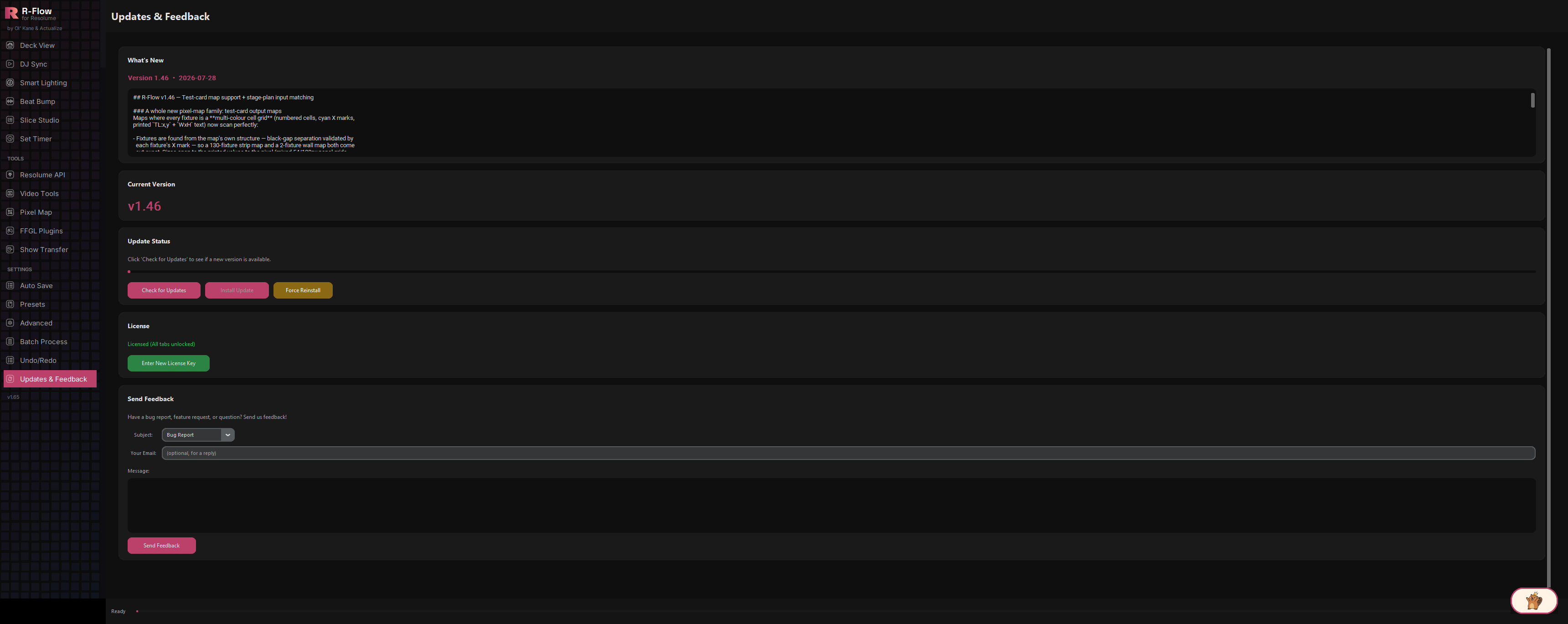
The Updates & Feedback app is R-Flow's home base for staying current and staying licensed. It pulls the latest release notes straight from the official release feed, tells you exactly how many versions behind you are, and installs updates with a single click: the app closes, swaps itself for the new version, and relaunches automatically. It's also where you manage your license: view your activation status, start the free 2-day trial, enter a license key, and grab the Hardware ID you need to purchase one. A built-in feedback form rounds it out, pre-filling a bug report or feature request in your email client.
The moment you open the app, R-Flow fetches the latest release notes (version number, release date, and full changelog) so you always know what shipped most recently.
Hit "Check for Updates" and R-Flow compares your installed version against the newest official release. If there's something newer, "Install Update" downloads it with a live progress bar, closes the app, replaces it, and relaunches the new version automatically.
Been away for a while? The app tells you exactly how many versions behind you are ("You are 4 versions behind!") and stacks up the release notes for every version you missed, newest first. A single install jumps you straight to the latest.
If your current install is misbehaving, "Force Reinstall" re-downloads and reinstalls the exact version you're already on, a clean-slate fix without hunting for installers.
Sign in with your R-Flow account and your purchased apps unlock automatically, with no license keys to copy. Licenses are still locked to your machine, renew themselves online, and allow one signed-in machine per account at a time.
New users get a 2-day free trial, no key required, with every app in the suite unlocked. The License card counts down your remaining days.
Pick a subject (Bug Report, Feature Request, Question, or Other), optionally add your email for a reply, write your message, and "Send Feedback" opens your email client with everything pre-filled, including your app version, so you never have to remember it.
The "What's New" card at the top loads the latest release notes automatically, and the "Current Version" card shows the version you're running right now.
In the "Update Status" card, click "Check for Updates". If you're current, you'll see "You're up to date!". If a new version exists, the status shows the latest version number and an "Available Update - Release Notes" card appears with the changelog for every version you've missed.

Click "Install Update" and confirm. Watch the progress bar as it downloads, then let R-Flow close itself. A small installer window appears, swaps in the new version, and relaunches R-Flow automatically. Don't close that window; it disappears on its own when done.
In the "License" card, click "Enter New License Key" to open the sign-in window. Enter your account email and password, click "Sign In", and we'll email you a 6-digit code. Type it into the code prompt and your purchased apps unlock on this machine.

R-Flow allows one signed-in machine per account. To move, just sign in on the new machine. The old one signs out automatically on its next check. You can also sign a machine out remotely from your website dashboard.
After activating, R-Flow prompts you to restart so any newly unlocked apps appear. The License card then shows your status: "Licensed (All tabs unlocked)" or the number of tabs your key includes.
No key yet? In the activation window, click "Start 2-Day Free Trial" instead. The trial activates instantly and the License card shows "Trial Active" with your days remaining. The trial works once per computer.
In the "Send Feedback" card, choose a Subject (Bug Report, Feature Request, Question, or Other), optionally enter Your Email if you'd like a reply, type your Message, and click "Send Feedback". Your email client opens with everything pre-filled. Just hit Send.

| Subject | Feedback category dropdown: Bug Report, Feature Request, Question, or Other. Your R-Flow version number is added to the email subject automatically. |
|---|---|
| Your Email | Optional reply address included in your feedback message. Leave it blank if you don't need a response. |
| Message | The body of your feedback. It can't be empty (R-Flow will remind you before sending). |