
Show Transfer
Pack a whole show for another machine and have every clip relink when it lands there.
Pack a whole show for another machine and have every clip relink when it lands there.
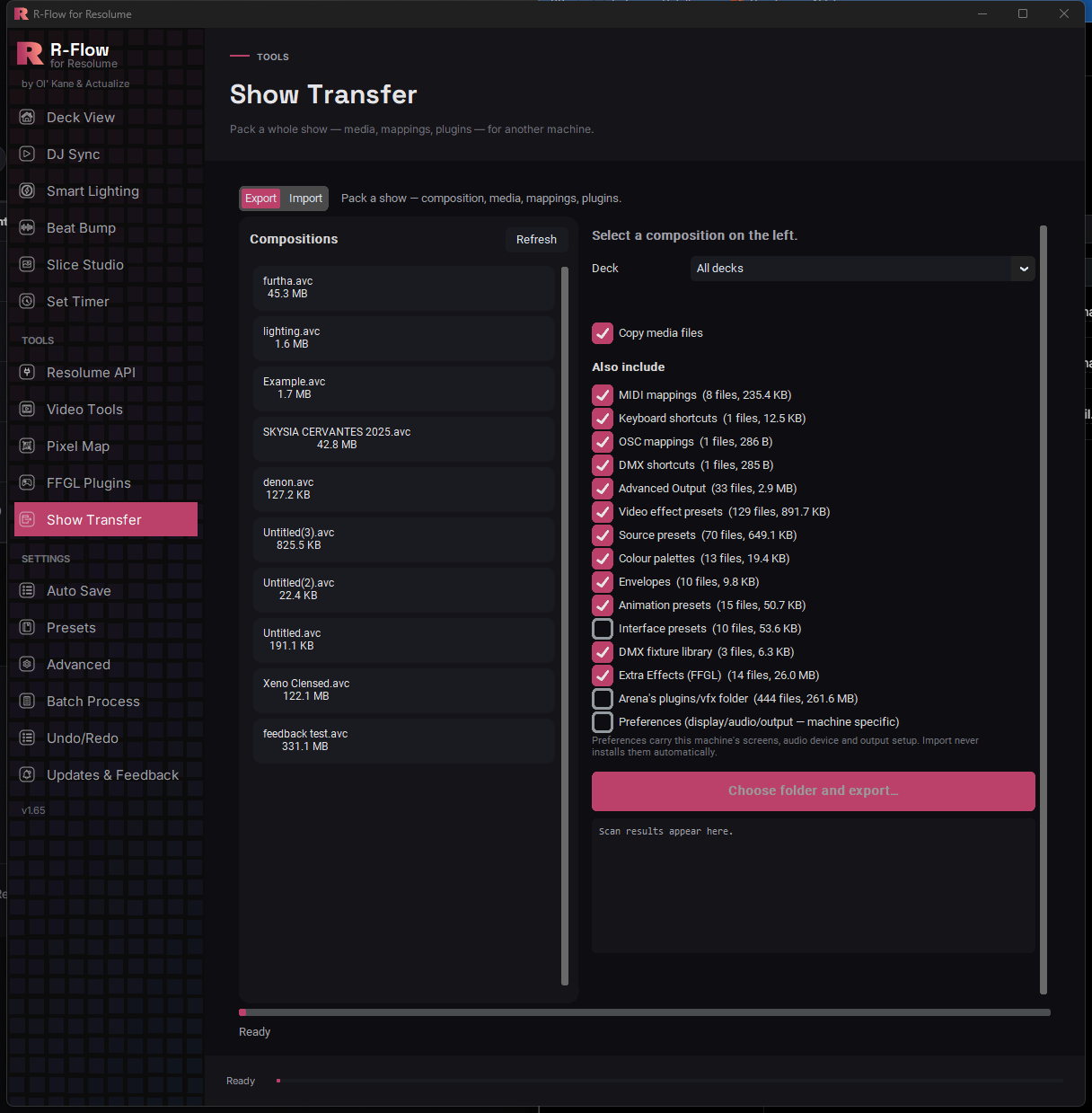
Show Transfer packs a composition and everything it leans on (media, MIDI and keyboard mappings, Advanced Output and effect presets, your Fixture Library, Extra Effects plugins) into one folder you copy to a drive. It exists because media paths inside a .avc are absolute, so a composition copied on its own opens on the new machine full of red clips, because H:\Masks\Stripe 16.mov simply isn't there. Export keeps each file's drive and folder structure under Media/ and writes a manifest listing every original path. Import copies the media wherever you want it on the target machine and rewrites every path in the composition to match, which is the difference between copying the files across and the show playing. You can pack a single deck instead of the whole comp, and Preferences stay off by default, because one rig's display and output setup has no business landing on another.
Import copies the packaged media wherever you point it, then rewrites every media path inside the composition to match its new home. That rewrite is why the show opens with its clips online instead of red.
"Copy media files" is on by default, and each file lands under Media/ with its original drive and folder structure intact, so "H:\Masks\Stripe 16.mov" becomes Media/H/Masks/Stripe 16.mov inside the package. Keeping the drive letter as a folder is what stops two clips called intro.mov from different drives landing on top of each other in the package. Import drops that drive folder again when it copies, so read the gotcha below if your show pulls same-named media off two drives.
Under "Also include", R-Flow offers whatever it finds in your Resolume folder: MIDI, keyboard, OSC and DMX shortcuts, Advanced Output presets, effect and source presets, colour palettes, envelopes, animation presets, the DMX fixture library and your Extra Effects FFGL folder. Twelve are ticked by default, each one showing its file count and size, and folders that are empty or missing are never offered.
The Deck dropdown packages one deck on its own, stripping the other decks out and correcting the deck count in the file. Useful for a guest slot where the venue machine has no business holding your other four sets.
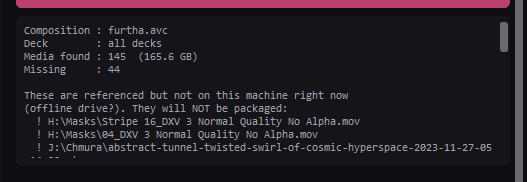
The scan reports how many media files it found and their total size, and switches to a warning colour with a separate MISSING count when referenced clips aren't on this machine. It asks before packaging anyway, and the package README lists the first 60 missing paths with the full list in MANIFEST.json, so an offline drive is something you find in the workshop rather than at soundcheck.
Preferences (screens, audio device, output setup) are off by default and never installed by import. Those files describe this machine's hardware, not the venue's, and the venue's output setup is the last thing you want overwritten on show day. Arena's own plugins/vfx folder is opt-in as well, and stays a hand copy at the other end since it needs admin rights.
It opens in Export mode: an Export / Import switch at the top, your Compositions list down the left, the what-to-include panel on the right, and a progress bar with a status line (starting at "Ready") along the bottom. Flipping the switch rebuilds the whole panel below it, so finish one job before you swap to the other.
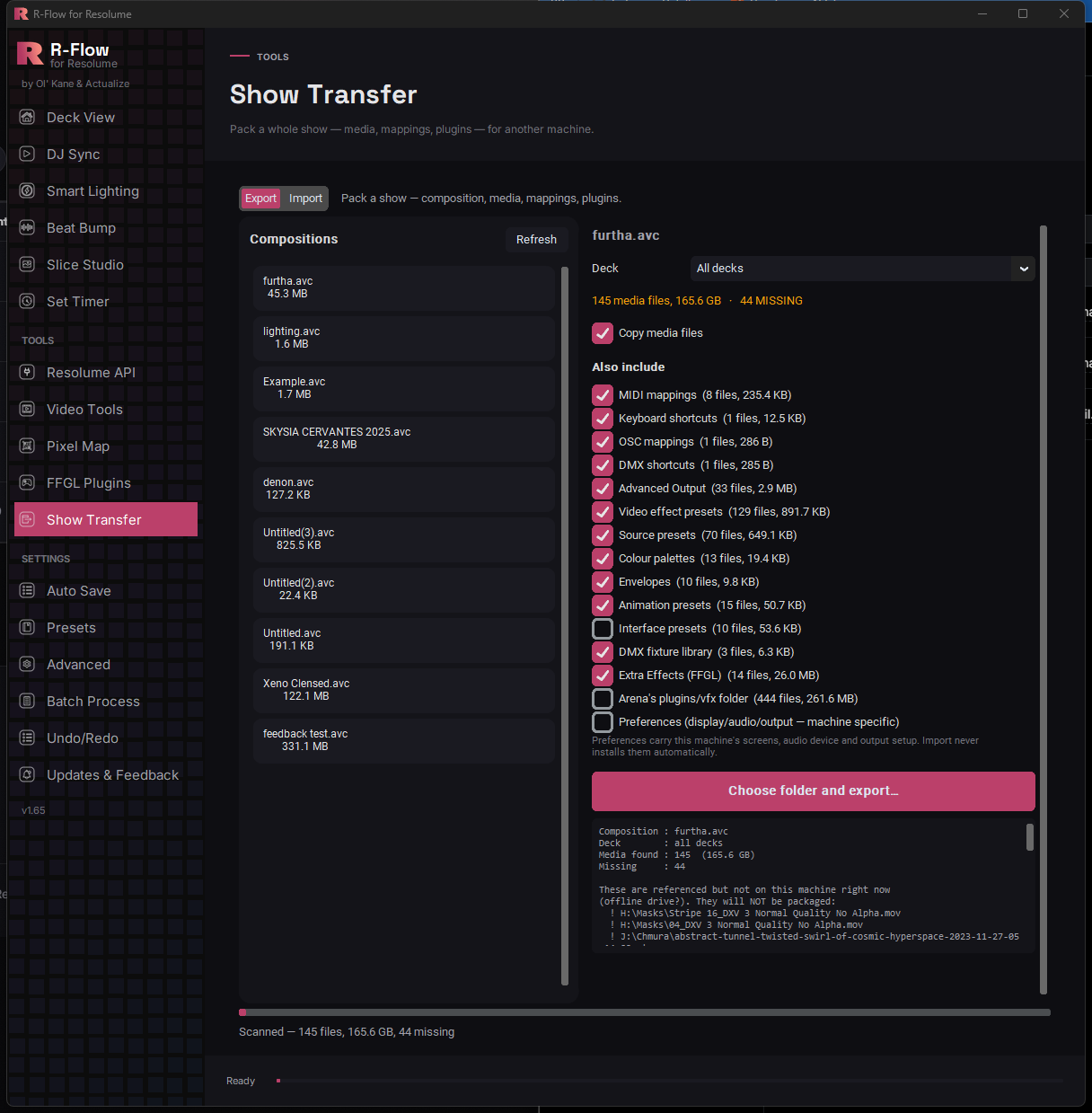
The Compositions list reads your Documents > Resolume Arena > Compositions folder, newest saved first, showing each .avc or .avs with its file size. Click one and R-Flow immediately scans it for every media path inside. "Refresh" re-reads the folder if you just saved from Resolume. If you get "Resolume's Compositions folder wasn't found", R-Flow couldn't locate Resolume under your Documents folder, and there's no way to point it elsewhere.
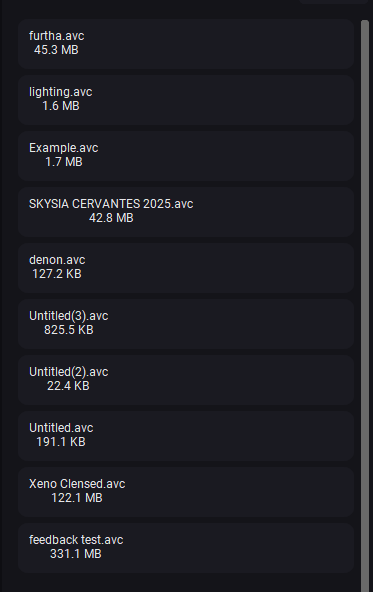
The Deck dropdown offers "All decks" plus every deck in the composition, listed as "1. Deck name". Pick one and the packaged .avc has the other decks stripped out and its header reset to a single deck. Changing the dropdown rescans straight away, so the file count and size always match what you're shipping.

The summary line above the checkboxes reads like "148 media files, 62.4 GB", counting the files it found and their size, and it adds a MISSING count in warning colour when referenced files aren't on this machine. The report box below lists the missing paths (first 40, then a count of the rest). Missing files never make it into the package, so if a drive is offline, plug it back in and click the composition again before you ship a show with holes in it.
"Copy media files" is on by default and is the whole point of the exercise. Leave it alone. Under "Also include", R-Flow only offers folders that exist and hold files, each labelled with its file count and size. Pre-ticked: MIDI mappings, keyboard shortcuts, OSC and DMX mappings, Advanced Output, video and source presets, colour palettes, envelopes, animation presets, the DMX fixture library and your Extra Effects (FFGL) folder. Starting off: audio effect presets, Mixer presets, Interface presets, Arena's plugins/vfx folder (large, and the target machine's Resolume ships the same bundled plugins) and Preferences, which carry this machine's hardware setup.
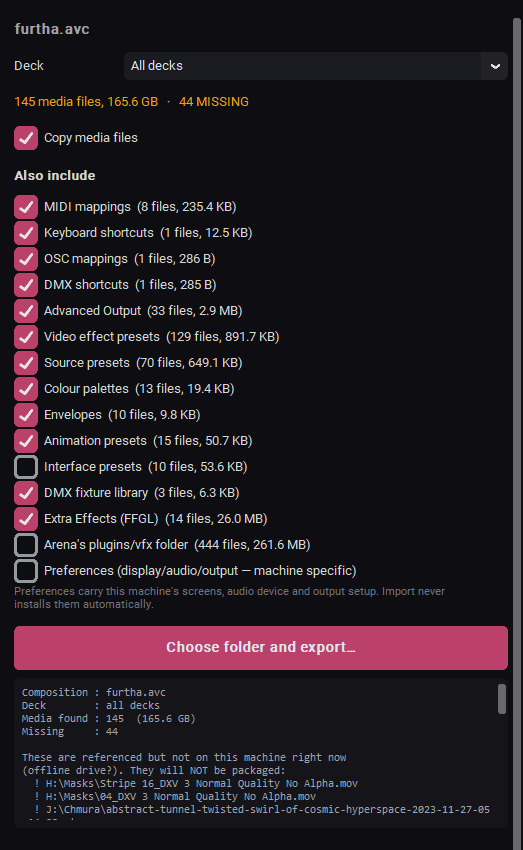
"Choose folder and export…" only becomes clickable once the scan finishes. If anything was missing you get a Missing media confirmation first, and answering No backs you out so you can reconnect the drive. Otherwise pick the parent folder you want the package to land in (external drive, NAS share, desktop) and R-Flow creates "<Composition> - Show Package" inside it, with the deck name in there too if you chose one. The status line names each file as it copies, and an Export complete dialog offers to open the folder when it's done.
The package is a plain folder, never a zip: MANIFEST.json, README.txt, Composition/ with the .avc, Media/ holding every clip under its original drive and folder tree, plus a folder for each extra you ticked. Copy all of it, MANIFEST.json included, because that file is the relink table and nothing works on the far side without it. README.txt inside spells out what's in the package and what still needs doing by hand, including fonts used by text clips (not collected) and Arena's vfx plugins, which have to be dropped into Program Files with admin rights.
Import runs in R-Flow on the target machine, and Show Transfer is not one of the trial apps, so that install needs a licence. No R-Flow at the other end? The package is still usable by hand. Copy Media/ wherever you want it and relink the clips in Resolume yourself, because the paths in the packaged .avc still point at your drives and will not resolve on their own. README.txt in the package says the same thing.
Open Show Transfer on the target machine and flip the switch to Import. Click "Browse…" next to "Package folder" and select the package folder itself, the one holding MANIFEST.json. Use the Browse button. Typing or pasting a path into the box does not enable "Import show". The report then prints a SHOW PACKAGE summary (composition, deck, when and where it was made, media count and size, what's included) so you can confirm you grabbed the right one.
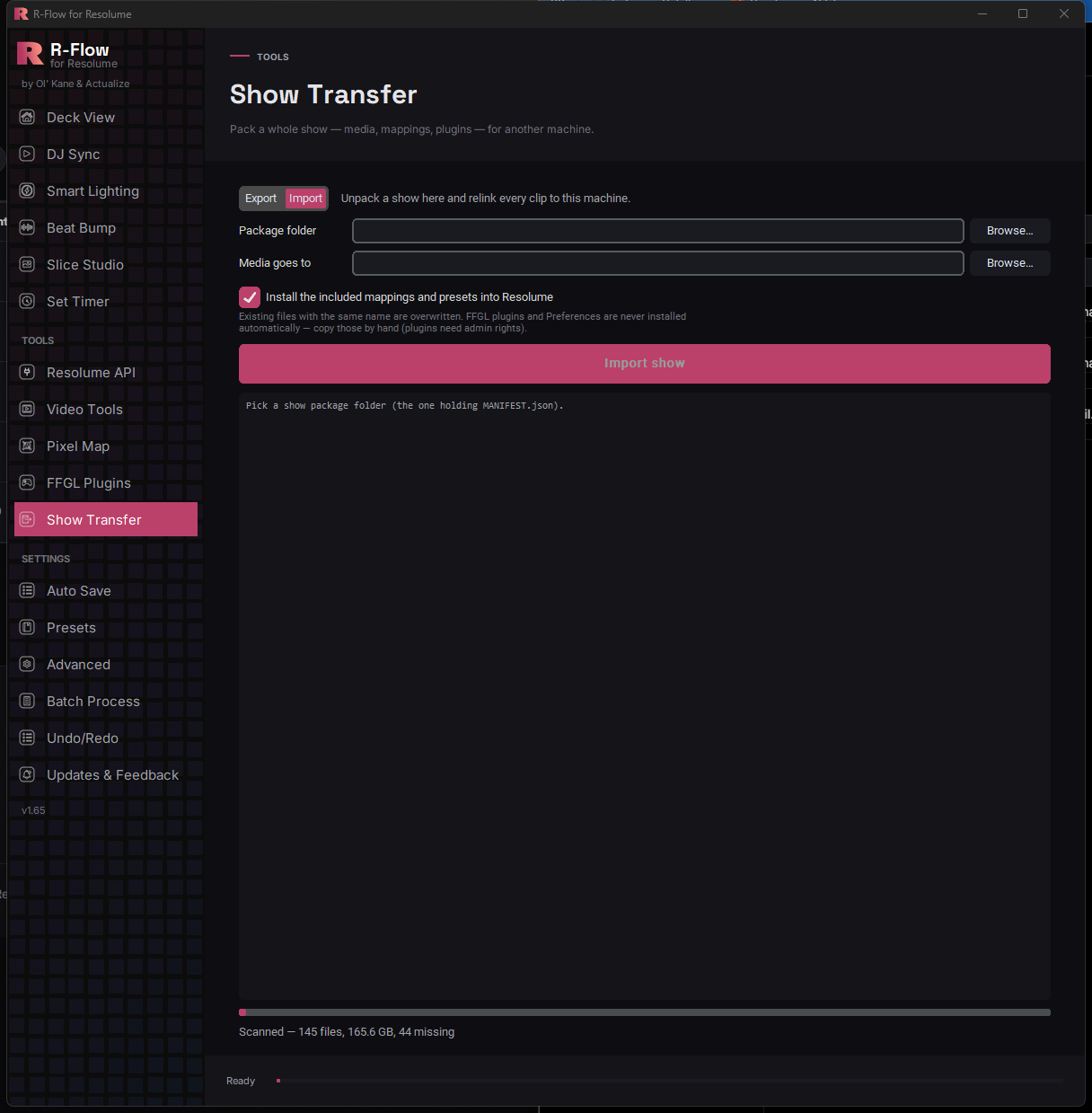
"Media goes to" auto-fills with an Imported Shows folder named after the composition, but only when the box is empty, so a second import in the same session keeps the first show's folder until you clear it or re-Browse. Change it with the second "Browse…" if your media belongs on a dedicated drive. Leave "Install the included mappings and presets into Resolume" ticked to put the packaged shortcuts and presets into this machine's Resolume folders, remembering that same-named files get overwritten. Click "Import show": the media copies, every clip path in the composition is rewritten to the new location, and the relinked .avc lands in this machine's Compositions folder. The report ends with files copied, paths relinked, where the composition landed, and a problem count if anything went wrong (up to 20 lines, such as a file missing from the package or an extras folder that would not copy). Read it, because non-zero copy and relink counts do not mean everything arrived.
| Export / Import | The segmented switch at the top. Export packs a show off this machine, Import unpacks one onto it. Switching modes rebuilds the whole panel below, so finish one job before flipping to the other. |
|---|---|
| Deck | Dropdown next to the composition you picked, defaulting to "All decks". Pick a single deck and the packaged composition contains only that deck, saved as "<Comp> - <Deck>.avc" with the deck count corrected to 1. Punctuation is stripped out of the deck name in that filename, while the package folder uses the deck name exactly as you typed it in Resolume. Changing it re-runs the scan, so the summary above always describes the file you are about to build. |
| Copy media files | On by default. Without it there is nothing to relink on the far side. Untick it only when both machines already see the same media at the same paths, such as a shared NAS or a drive lettered identically on both rigs. |
| Also include | The list under the media summary. A checkbox only appears for a folder that exists on this machine and has at least one file in it, and each one shows its file count and size. On import these go back to the same place under Documents > Resolume Arena, overwriting files of the same name. |
| MIDI mappings, Keyboard shortcuts, OSC mappings, DMX shortcuts | Your four Shortcuts folders, all on by default. These are what make the show playable on the target machine rather than just visible. Untick them when you are handing the package to someone else's rig that already has its own controller mappings. |
| Advanced Output, Video effect presets, Source presets, Colour palettes, Envelopes, Animation presets | Ticked by default, and small enough that there is no reason not to. Your screen setup preset, saved effect and source presets, palettes, envelopes and animation presets are the things a show leans on constantly. Leave them ticked unless you are certain the target machine already has identical copies. |
| Audio effect presets, Mixer presets, Interface presets | The three include options that start off. Tick them if your show depends on saved audio effect or mixer presets, or if you want your interface layout to travel with the package. |
| DMX fixture library | Documents > Resolume Arena > Fixture Library, on by default. Keep it ticked for any show that drives lighting, since a fixture your composition patches to has to exist on the far machine. |
| Extra Effects (FFGL) | Your user-installed FFGL effects from Documents > Resolume Arena > Extra Effects, on by default. These do get installed on import, into the same user-level folder, so no admin rights are involved. The Import screen's warning about FFGL plugins refers to Arena's plugins/vfx folder only. Plugins installed anywhere else are not collected. |
| Arena's plugins/vfx folder | Off by default, and only offered when Arena's install folder is found. It packages Arena's own bundled plugins out of Program Files, which is a lot of data, and import never installs them. Someone copies that folder by hand on the target machine, with admin rights. Tick it only when you know the target install is missing something the show needs. |
| Preferences (display/audio/output, machine specific) | Off by default. Copies seven preference files (MIDI, OSC, DMX, advanced and simple output, config and extensions) into the package, and import never installs them. They describe this machine's displays, audio device and output routing, none of which will match the rig you are handing the package to. Include them as a reference copy only. |
| Package folder | In Import mode, point this at the package folder itself, the one holding MANIFEST.json, README.txt and Composition. A path typed or pasted into the box will not arm the Import show button, so use Browse. |
| Media goes to | In Import mode, this is where the packaged media lands on this machine, and the exact path every clip in the composition is rewritten to. It fills itself in with Documents > Resolume Arena > Imported Shows > <composition name> when you pick a package, but only while the box is still empty, so clear it before you import a second show. Change it to whichever drive has the space and the read speed for playback. |
| Install the included mappings and presets into Resolume | Ticked by default in Import mode. Copies everything from the include list back into Documents > Resolume Arena on this machine, overwriting same-named files with no backup and no undo. Untick it on a machine that is not yours, or when you only want the media and the relinked composition. |