Workflow & Safety
Auto-saves, presets, batch runs, smart matching, and instant undo. Your show, protected.
Auto-saves, presets, batch runs, smart matching, and instant undo. Your show, protected.
The Workflow & Safety suite is five small apps that wrap a safety net around your Resolume workflow. Auto Save keeps your composition saved on a timer so a crash never eats an hour of work. Presets store your whole R-Flow setup under a name you choose, Batch Processing reorders many compositions against one setlist in a single run, Advanced Matching gives you fine-grained control over how track names are matched to columns, and Undo/Redo keeps timestamped backups of your compositions so any change can be rolled back.
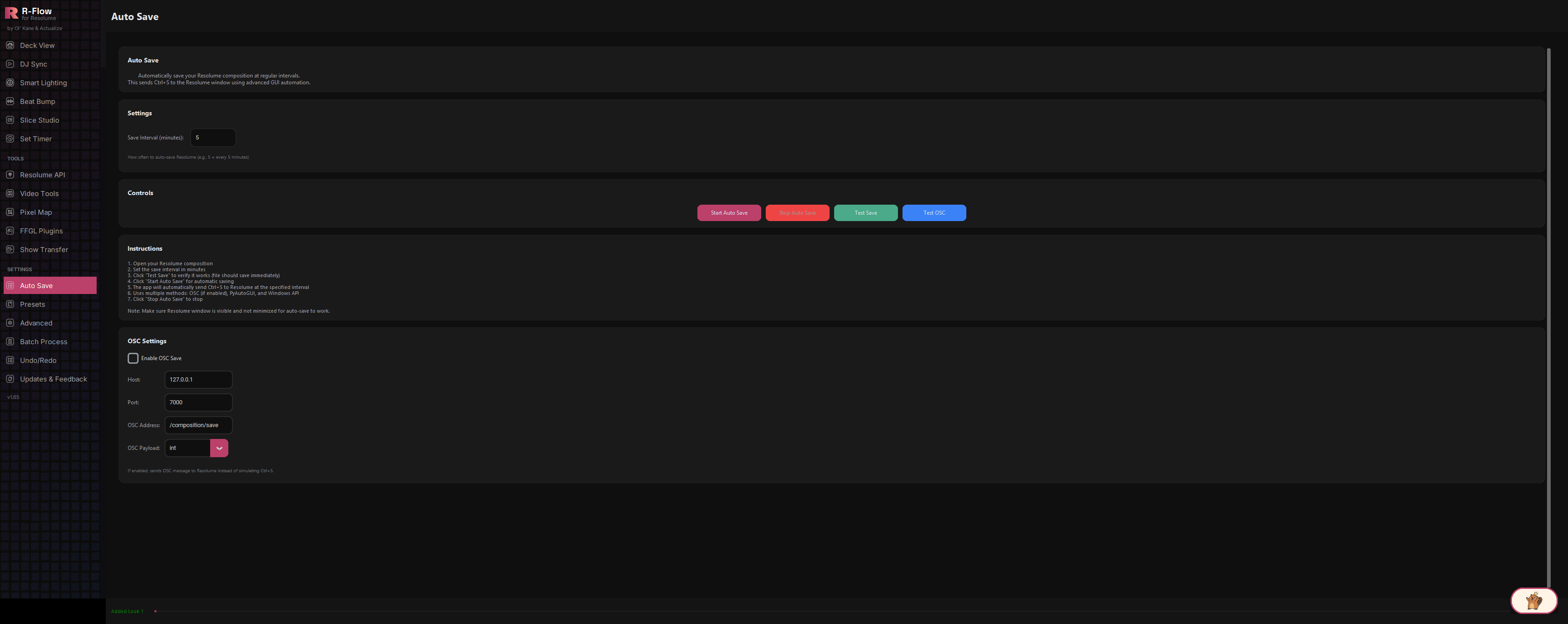
Set an interval in minutes and R-Flow automatically triggers a save in Resolume, either by sending an OSC save message or by finding the Resolume window and simulating Ctrl+S with layered automation fallbacks. It even watches Resolume's title bar (the unsaved-changes asterisk) to confirm the save actually landed, and reports a timestamped status after every save.
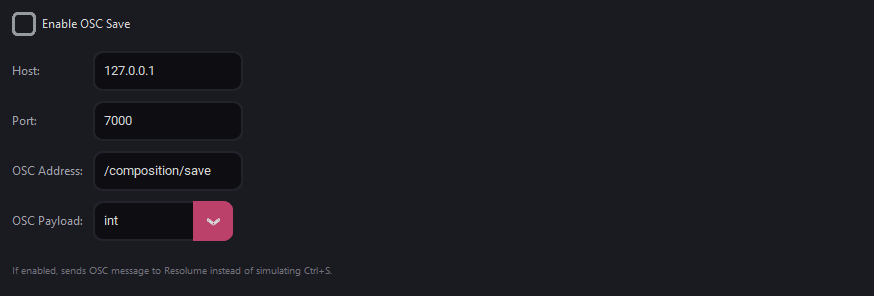
Prefer a cleaner path than simulated keystrokes? Tick "Enable OSC Save" and R-Flow sends a network save message straight to Resolume instead (default: 127.0.0.1, port 7000, address /composition/save, with a configurable payload type). A "Test OSC" button confirms the message goes out before you rely on it mid-show.
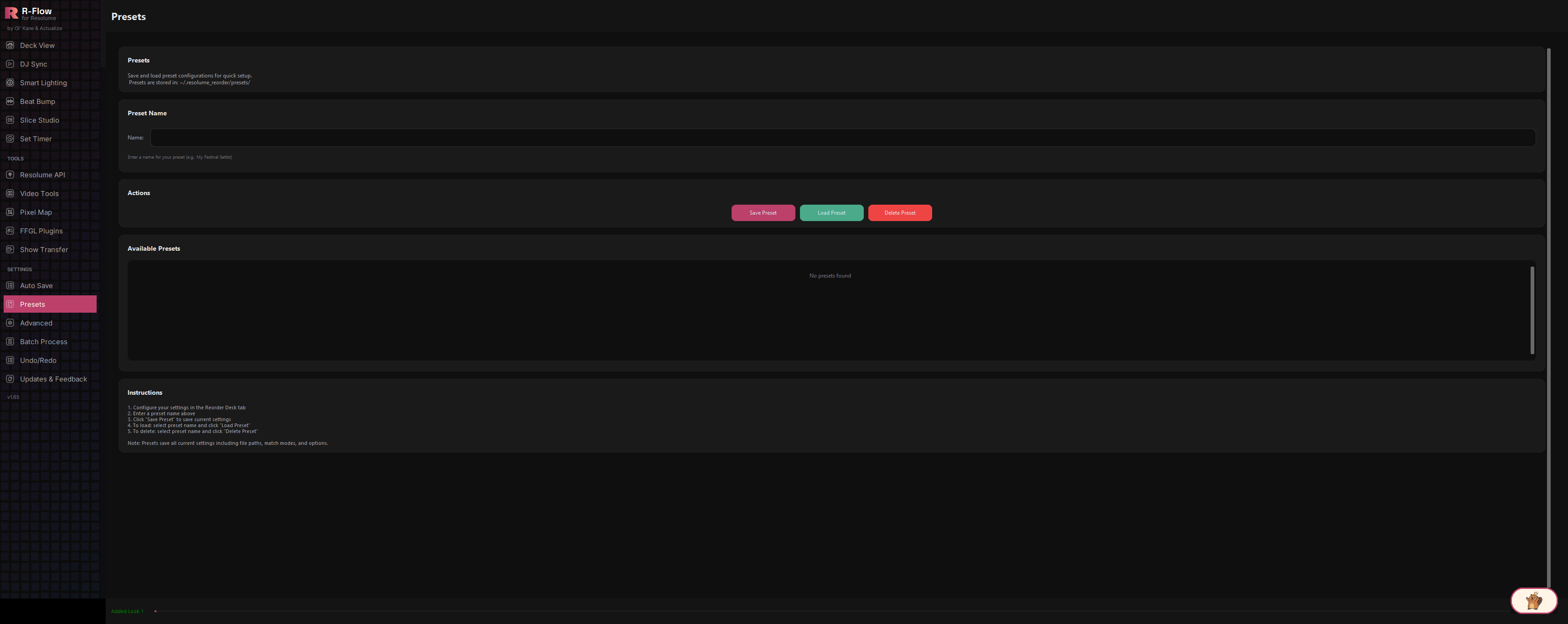
Type a name (e.g. "My Festival Setlist"), hit "Save Preset", and R-Flow stores your core reorder setup (file paths, match mode, deck/group names, run options, and Auto Save/OSC settings) as a named preset. Every saved preset appears in a clickable "Available Presets" list; click one to select it, then Load or Delete it with one more click. Presets live in your user folder under .resolume_reorder/presets.
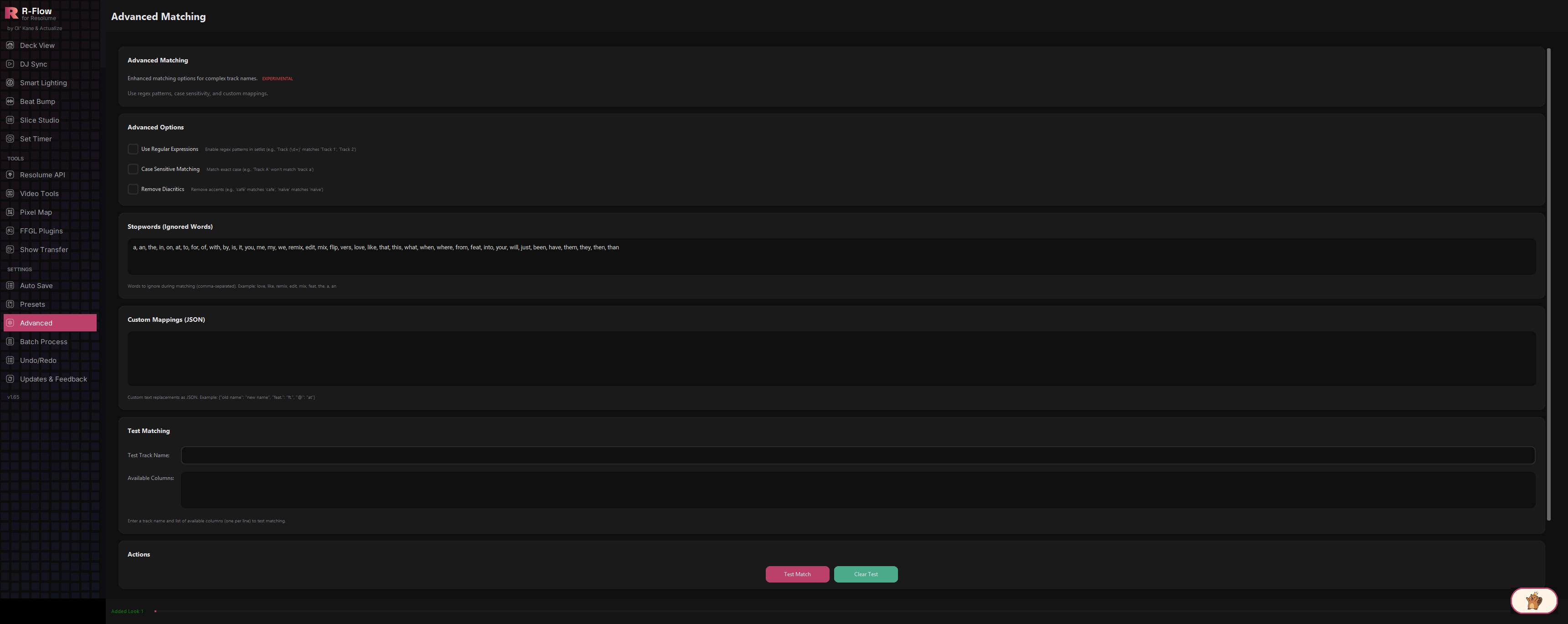
When setlist names and column names don't line up perfectly, this app gives you the tools: regular-expression matching (e.g. "Track (\d+)" matches "Track 1", "Track 2"), case-sensitive matching on/off, and accent removal so "café" matches "cafe". Marked experimental in the app, so test before showtime.
List words to ignore during matching (remix, edit, feat, the...) as a comma-separated stopword list, and define custom text replacements, like turning every "feat." into "ft.", so your setlist and your composition finally speak the same language.
Enter a sample track name and a list of column names, hit "Test Match", and see exactly which columns match after your mappings, accent removal, and case rules are applied, all before you touch a real composition.
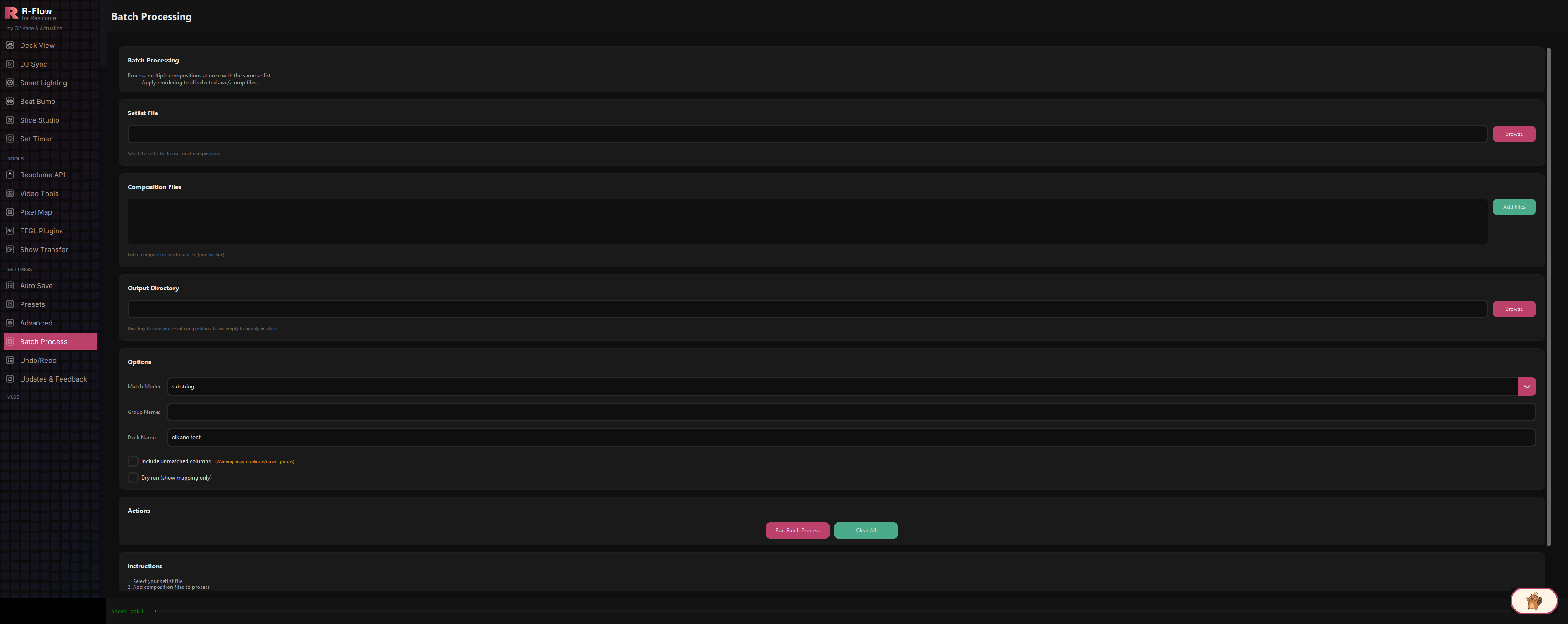
Point at a setlist, add as many .avc/.comp composition files as you like, and run them all through the reorder engine in one pass. Choose exact, substring, or fuzzy matching, target a specific group and deck by name, optionally keep unmatched columns, and get a per-file success/failure report with a progress bar as it works.
The "Dry run (show mapping only)" option previews what would be reordered without writing anything, and an optional output directory keeps your originals untouched. Leave it empty only when you deliberately want in-place edits.
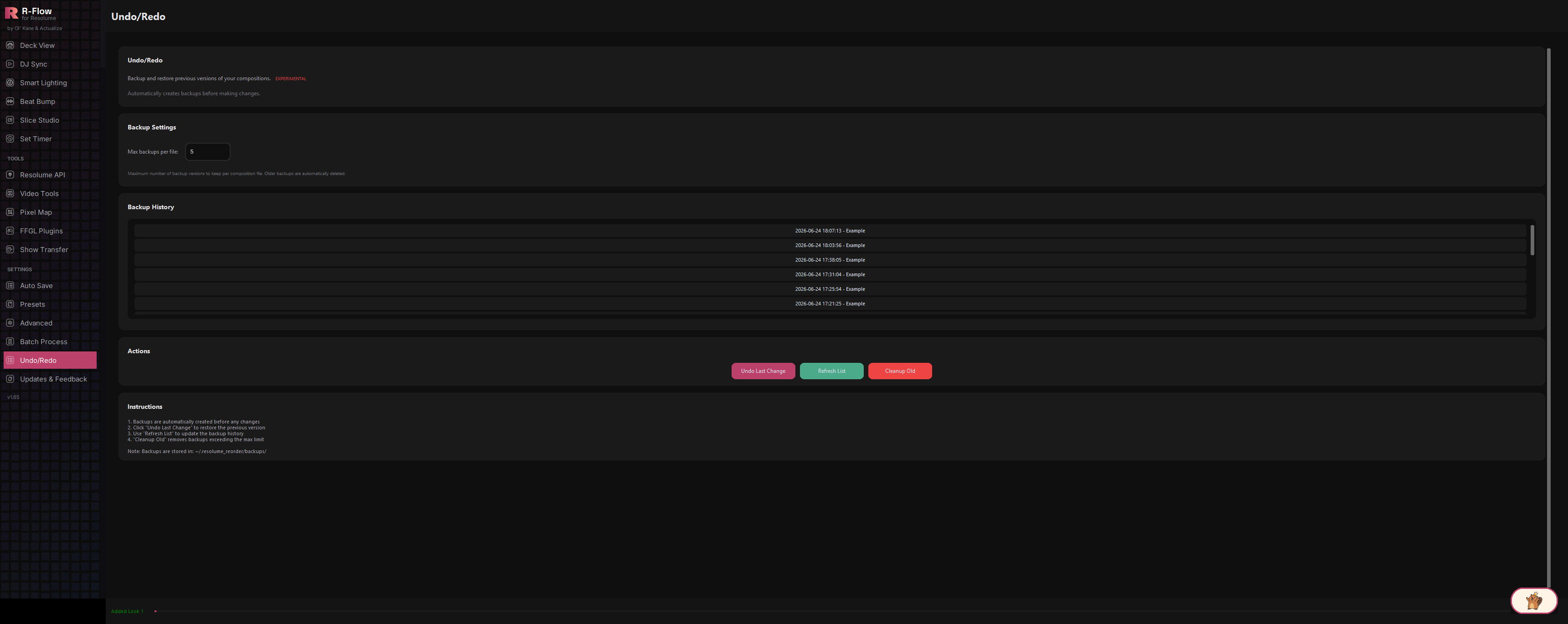
R-Flow creates a backup of your composition before making changes, keeps a timestamped history (grouped per original file), and lets you restore any version with "Undo Last Change". You pick where the restored file is written, so nothing gets silently overwritten. A per-file backup cap (default 5) plus a "Cleanup Old" button stops the backup folder from growing forever.
Open your composition in Resolume, then in the Auto Save app enter a number in "Save Interval (minutes)", e.g. 5 for every five minutes. Click "Test Save" first: R-Flow finds the Resolume window and sends the save. A green status means Resolume was found with unsaved changes and the save command was delivered; blue means no unsaved-changes marker was detected.

Click "Start Auto Save". The progress bar fills as the countdown runs, and after each save you get a timestamped status like "Auto-saved Resolume at 22:14:05". Click "Stop Auto Save" to end it. Keep the Resolume window visible and not minimized while it runs.

In the OSC Settings card, tick "Enable OSC Save" and check Host (127.0.0.1 for the same machine), Port (7000 by default), and OSC Address (/composition/save). Click "Test OSC" and you'll get a confirmation popup if the message was sent. When OSC is enabled, R-Flow uses it instead of simulating keystrokes.
Configure everything the way you like in Deck View, then in the Presets app type a name into the "Name" field and click "Save Preset". It immediately appears in the "Available Presets" list.

Click a preset in the "Available Presets" list to select it (it fills the Name field), then click "Load Preset" to apply all its settings, or "Delete Preset" to remove it.

Tick the options you need: "Use Regular Expressions" for pattern matching, "Case Sensitive Matching" if exact casing matters, "Remove Diacritics" to ignore accents. Add ignored words to the Stopwords box (comma-separated, e.g. remix, edit, feat) and text replacements to the Custom Mappings box as JSON, e.g. {"feat.": "ft."}.

Type a sample name into "Test Track Name", paste your column names into "Available Columns" (one per line), and click "Test Match". A results popup shows the processed track name and every column that matched. "Clear Test" resets the fields. Once happy, these settings apply when you run reorders from the main app.

In the Batch Processing app, click "Browse" next to Setlist File to choose the setlist used for every composition, then click "Add Files" to select all the .avc/.comp files to process. They appear one per line and you can edit the list directly.

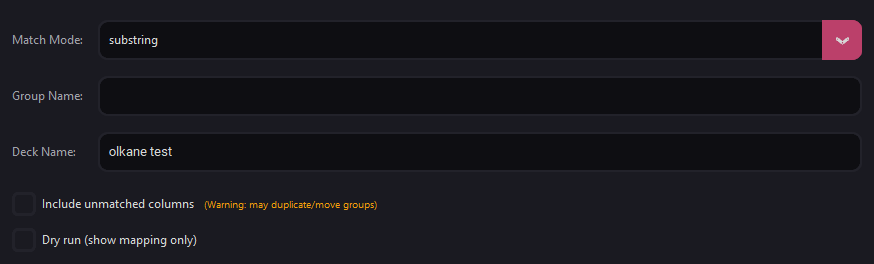
Set an Output Directory with "Browse" to write processed copies there, or leave it empty to modify the originals in place. Pick a Match Mode (exact, substring, or fuzzy), optionally set Group Name and Deck Name, and decide on "Include unmatched columns" (warned in-app: may duplicate or move groups) and "Dry run (show mapping only)" for a no-write preview.
Click "Run Batch Process". The status line shows progress file by file, and when it finishes you get a summary popup listing successes and failures with a per-file breakdown. "Clear All" empties the file list and output field for the next run.
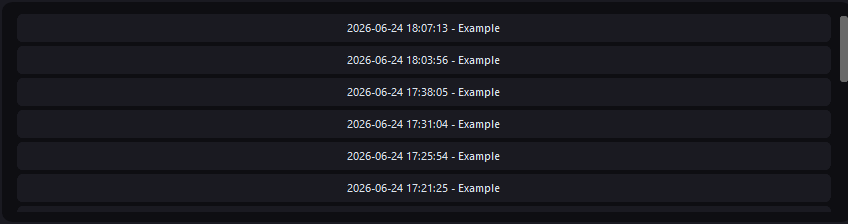
Backups are created automatically before changes, so the Backup History list fills up on its own: each entry shows a date, time, and the original composition name. Click one to select it, then click "Undo Last Change"; a save dialog asks where to write the restored file. If you click "Undo Last Change" without selecting, the most recent backup is used.
Set "Max backups per file" (default 5), then click "Cleanup Old" to delete anything beyond that limit for each composition. A popup confirms how many were removed. "Refresh List" re-scans the backup folder at any time.
| Auto Save: Save Interval (minutes) | How often to trigger a Resolume save. Minimum 1 minute; the field locks while auto save is running. |
|---|---|
| Auto Save: Enable OSC Save | Send a network save message to Resolume instead of simulating keystrokes. |
| Auto Save: Host / Port / OSC Address / OSC Payload | Where the save message goes. Defaults: 127.0.0.1, port 7000, /composition/save; payload type selectable (int, float, string, bool, or none). |
| Presets: Name | The name your current settings are saved under; also filled in when you click a preset in the list. |
| Advanced Matching: Use Regular Expressions | Treat setlist entries as regex patterns, e.g. "Track (\d+)" matches "Track 1" and "Track 2". |
| Advanced Matching: Case Sensitive Matching | Require exact letter case: "Track A" won't match "track a". |
| Advanced Matching: Remove Diacritics | Strip accents so "café" matches "cafe" and "naïve" matches "naive". |
| Advanced Matching: Stopwords | Comma-separated words to ignore during matching, e.g. love, remix, edit, feat, the. |
| Advanced Matching: Custom Mappings (JSON) | Text replacements applied before matching, e.g. {"feat.": "ft.", "@": "at"}. Must be valid JSON. |
| Batch: Match Mode | How setlist names are matched to columns: exact, substring, or fuzzy. |
| Batch: Group Name / Deck Name | Target a specific group and deck inside each composition. |
| Batch: Include unmatched columns | Keep columns the setlist didn't match. In-app warning: may duplicate or move groups. |
| Batch: Dry run (show mapping only) | Preview the reorder without writing any files. |
| Batch: Output Directory | Where processed copies are saved. Leave empty to modify the original files in place. |
| Undo/Redo: Max backups per file | How many backup versions to keep per composition (default 5); "Cleanup Old" deletes the rest. |