
Video Tools
Batch-convert entire folders of clips to Resolume-ready HAP. No FFmpeg install needed.
Batch-convert entire folders of clips to Resolume-ready HAP. No FFmpeg install needed.
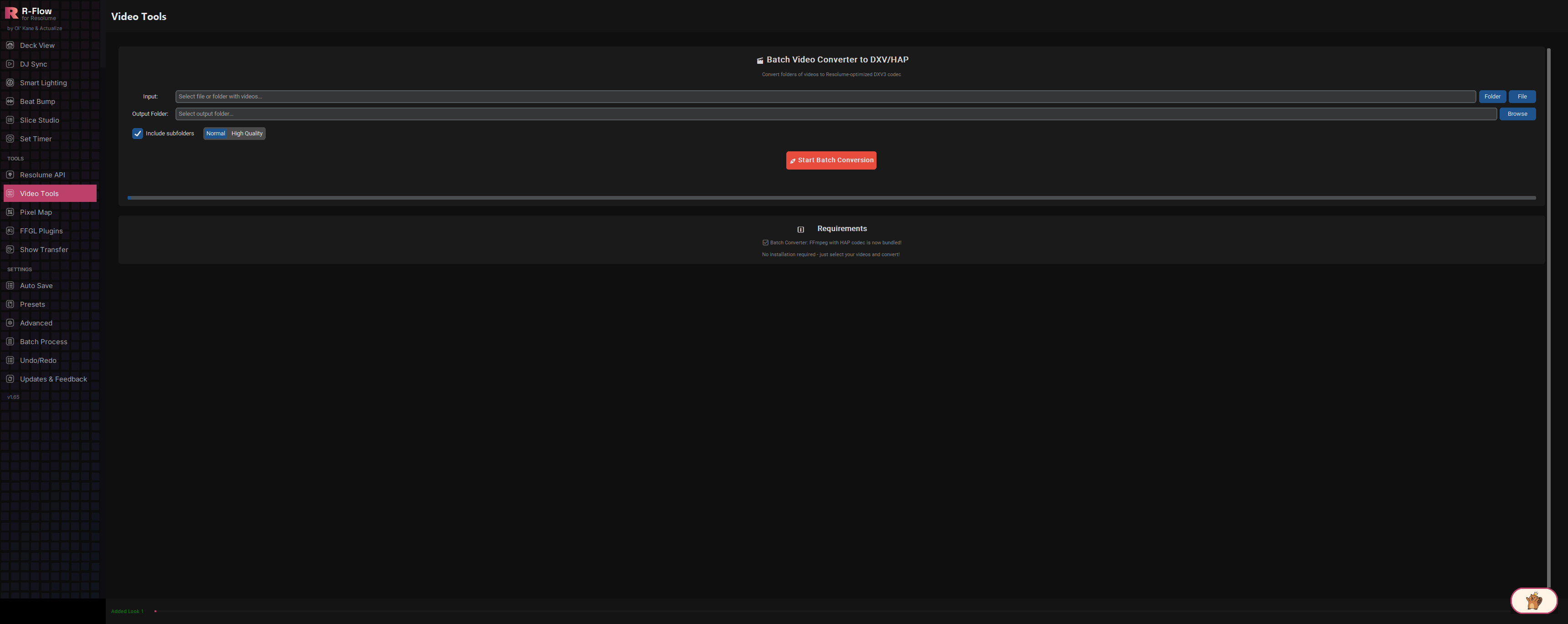
The Video Tools app is R-Flow's built-in batch video converter for getting footage stage-ready. Point it at a single clip or a whole folder of videos and it re-encodes everything to HAP .mov files, the GPU-accelerated codec family Resolume decodes effortlessly in real time, so your clips scrub, loop, and layer without stuttering. FFmpeg with HAP support is bundled right into the app, so there's nothing to install: select, convert, drop into your decks.
Convert an entire folder of videos to Resolume-optimized HAP .mov files in one click, or convert a single file when you just need one clip fixed fast.
A HAP-capable FFmpeg encoder ships inside R-Flow. No downloads, no PATH editing, no command line. The Requirements panel in the app confirms it: no installation required.
With 'Include subfolders' checked (on by default), the converter scans your whole library tree and recreates the same folder structure in your output folder, so organized libraries stay organized.
Feeds on the formats VJs actually collect: MP4, AVI, MOV, MKV, WMV, FLV, WebM, and M4V all convert to HAP .mov output.
Two files convert simultaneously while a progress bar and a running [current/total] status line show exactly which clip is being processed. The whole job runs in the background so the app stays responsive.
Existing converted files are never overwritten. Re-running a batch skips clips that are already done, and a completion summary reports how many succeeded and how many failed.
Click the Video Tools app in R-Flow. The Batch Video Converter to DXV/HAP section sits at the top, with a Requirements panel below confirming the bundled encoder is ready.
Next to the Input field, click 'Folder' to pick a whole directory of videos, or 'File' to pick one clip (MP4, AVI, MOV, MKV, WMV, FLV, WebM, or M4V). The chosen path appears in the Input field.

Click 'Browse' next to the Output Folder field and pick a destination. The folder is created automatically if it doesn't exist yet. Converted clips land here as .mov files with the same names as the originals.
Leave 'Include subfolders' checked to convert everything inside nested folders too (their structure is mirrored in the output), or uncheck it to convert only the top level. The Normal / High Quality selector sits alongside it.
Hit the red 'Start Batch Conversion' button. It switches to 'Converting...' and locks while the job runs; the progress bar fills as the status line ticks through each file, e.g. [3/12] converting: clipname.mp4.

When the batch finishes, a 'Conversion Complete' popup reports how many files converted successfully, how many failed, and where the output folder is. Point Resolume's file browser at that folder and start dropping clips into your decks.
| Input | The source to convert. Use the 'Folder' button for a whole directory or the 'File' button for a single video. |
|---|---|
| Output Folder | Where converted .mov files are written. Created automatically if it doesn't exist; subfolder structure from the input is preserved. |
| Include subfolders | On by default. Scans every nested folder inside your input directory for videos instead of just the top level. |
| Normal / High Quality | Quality mode selector for the conversion, defaulting to Normal. |