Deck View
See inside every composition, then reorder decks to your setlist without opening Resolume.
See inside every composition, then reorder decks to your setlist without opening Resolume.
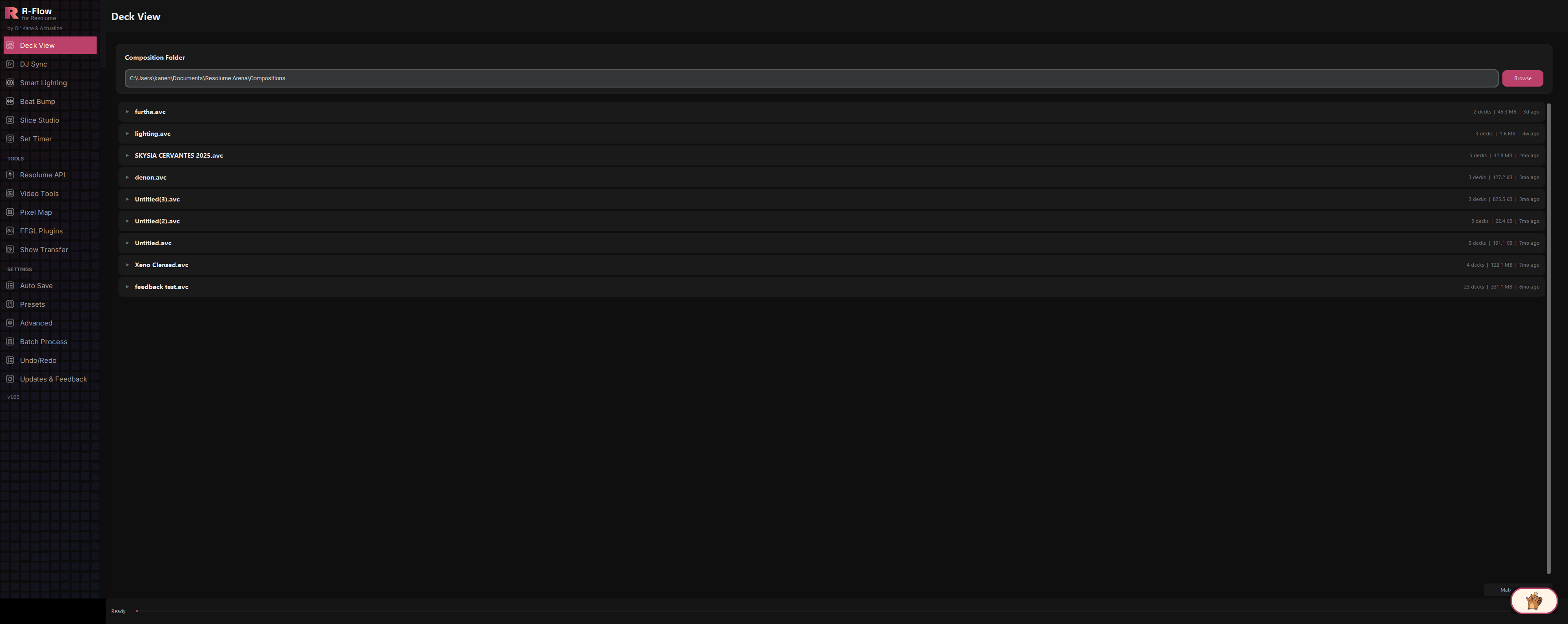
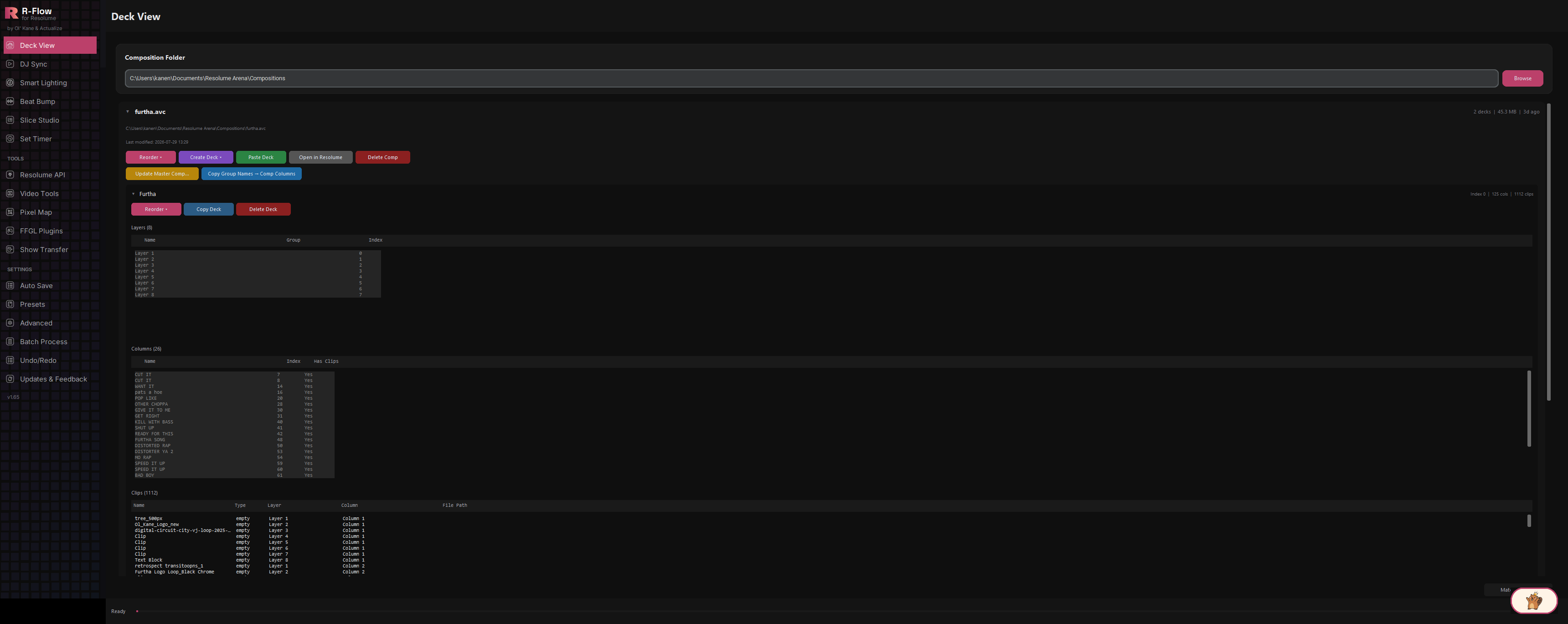
Deck View is R-Flow's flagship app: a visual browser for your entire Resolume composition folder. It lists every composition newest-first, lets you expand each one to see its decks, layers, columns, and clips at a glance, and then rebuilds any deck to match tonight's setlist: alphabetically, from a text file, or from a pasted track list. Reorders are previewed before saving, and every change to an existing composition file is protected by an automatic timestamped backup.
Automatically finds your Resolume Arena (or Avenue) composition folder and lists every composition with its deck count, file size, and how recently it was modified, sorted so your freshest work is always on top.
Expand a composition, then a deck, to see sortable tables of its layers (with group assignments), columns (with names, colors, and whether they hold clips), and every clip with its type, layer, column, and source file path.
Rebuild a deck in your set order three ways: Alphabetical, From Setlist File, or Paste / Type Setlist. A Preview & Save window shows the final column order and a green-check / red-cross report of exactly which tracks matched before anything is written.
Choose exact, substring, or fuzzy matching, and list words to ignore (like "remix" or "edit") so small naming differences between your setlist and your column names still match.
Generate a Template (Blank) deck with three named, color-cycled columns per song plus separators (ready to fill with looks), or a Reordered Deck built from your existing content.
Copy a whole deck from one composition and paste it into another, with its supporting layer and group structure carried along.
Push a gig comp's evolved columns back into a master composition: preview the column matches first, apply with one click, and revert from a timestamped backup at any time.
Every destructive action creates a timestamped backup first, deletions require double confirmation, and deleted compositions go to the Windows Recycle Bin, not into the void.
Open the Deck View app. R-Flow automatically detects Resolume's default composition folder (in your Documents under Resolume Arena) and loads it. To use a different folder, click Browse next to the Composition Folder field and pick any folder containing composition files. A progress message shows each file as it loads.

Each composition appears as a row showing its name, number of decks, file size, and age (like "3h ago"), newest first. Click a row to expand it and see the full file path, last-modified date, action buttons, and the list of decks inside.
Click any deck row to expand it. Deck details load in the background, then show tables for Layers, Columns, and Clips. Click any table header to sort. For example, sort clips by file path to spot missing media, or columns by name.
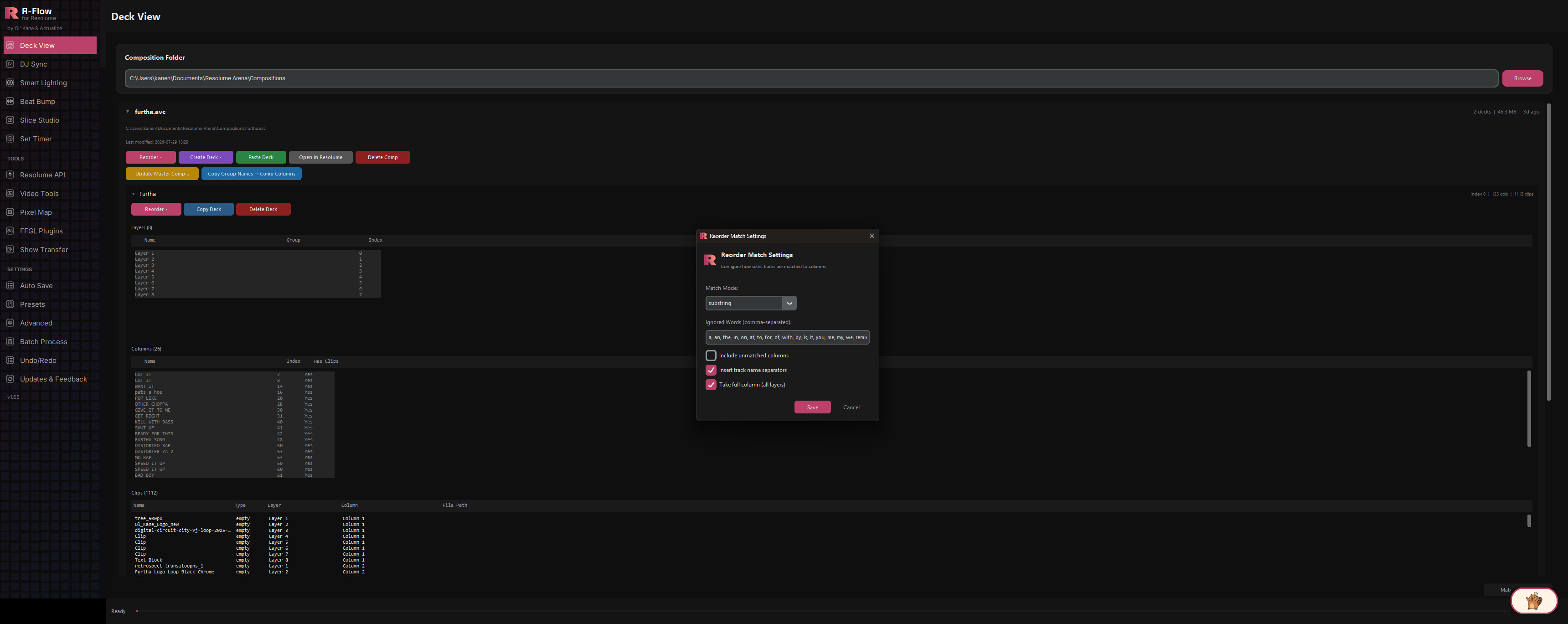
Click Match Settings (bottom right of the app). Pick a Match Mode (exact, substring, or fuzzy), add Ignored Words (comma-separated, e.g. "the, a, remix, edit"), and toggle: Include unmatched columns (keeps non-setlist columns at the end), Insert track name separators (empty divider columns labeled "Separator" between matched songs), and Take full column (all layers) (grab clips from every layer, not just the video group). Click Save.

Expand a composition (or a single deck) and click Reorder. Choose Alphabetical for an A-Z sort, From Setlist File to load a plain text file with one song per line, or Paste / Type Setlist to type or paste your set order directly. If you started from the composition level, a Select Source Decks window lets you tick which decks to pull columns from, with Select All / Deselect All shortcuts.
The Preview & Save window lists your setlist tracks with a green check for each matched track and a red cross for tracks not found, plus the final column order below. If some tracks didn't match, you can tick the "Create empty columns for the … unmatched track(s) when saving" checkbox (it shows the actual count) to insert named placeholder columns in setlist position. Give the new deck a name in the Deck Name field.
Click Save to Existing Comp to add the reordered deck to the same composition (a backup is created first), or Save as New Comp to write a brand-new composition file. It suggests a "_reordered" filename so your original stays untouched. A success message confirms the column count, and the list refreshes.
Use Create Deck on any composition: Template (Blank) builds an empty deck from your setlist with three columns per song (plus separators) and asks you to name it; Reordered Deck runs the full reorder flow and adds the result as a new deck.
Expand a deck and click Copy Deck, then expand a different composition and click Paste Deck. Confirm, and the deck lands in the target composition (the target is backed up first).
Click Update Master Comp... on the composition holding your newest work. Choose the source deck, the master composition and deck, and a match mode, then click Preview Matches to see exactly which columns will be updated. Click Update Master to apply, or Revert Master to Backup... anytime to roll back to an earlier timestamped backup.
Copy Group Names → Comp Columns syncs column names and colors from your video group up to the composition-level columns (with a preview count and confirmation). Open in Resolume launches the composition directly. Delete Deck and Delete Comp remove things safely: double confirmation, backup first, and deleted compositions go to the Recycle Bin.
| Match Mode | How setlist tracks are matched to column names: exact (same name, ignoring case), substring (track name contained in column name), or fuzzy (closest match, forgiving of small differences). |
|---|---|
| Ignored Words | Comma-separated words to ignore during matching (e.g. "the, a, remix, edit") so decorated titles still match clean column names. Applies to substring matching (and Update Master's column matching); fuzzy mode compares whole names and ignores this list. |
| Include unmatched columns | Keep columns that don't match any setlist track, appended at the end of the reordered deck instead of being dropped. |
| Insert track name separators | Add a labeled separator column between each track in the setlist so you can see song boundaries mid-set. |
| Take full column (all layers) | Pull clips from every layer in each column, including layers outside the video group, like FX stacks and chasers. Uncheck to only take layers inside the video group. Persistent clips are never moved either way. |